How to check grammar and spelling in Word (without losing your mind)
I've been using Microsoft Word for years. Articles, emails, client drafts, resumes… you name it. And yet, I still remember the first time I stared at my screen thinking: Why is Word not catching such an obvious mistake?
That's exactly why this post exists.
This is not theory. This is muscle memory. Stuff I've messed up, fixed, and now use on autopilot.
If you're here to learn how to check grammar and spelling in Word, properly, let's get into it.
This guide is for people who don't just want to "run spell check," but actually want Word to catch real mistakes — without breaking their writing flow.
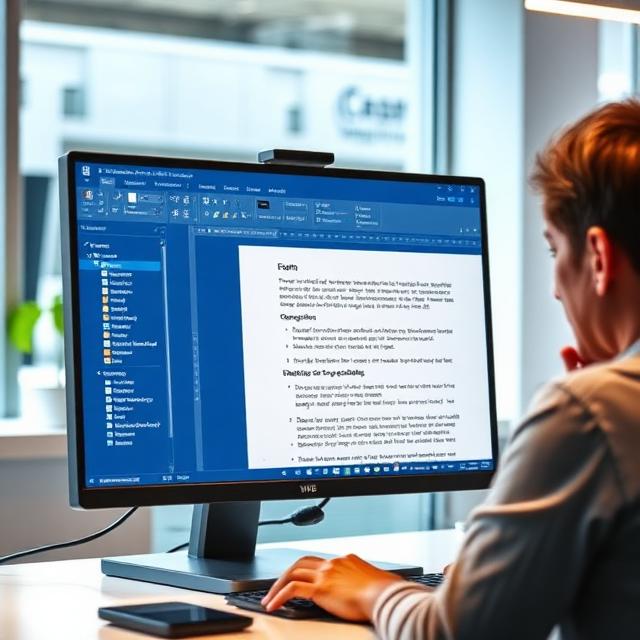
How to check grammar and spelling in Word (quick answer)
To check grammar and spelling in Microsoft Word:
- Open your Word document
- Press F7 on your keyboard
- Review spelling and grammar suggestions
- Click Change, Change All, or Ignore
Alternative: You can also go to Review → Spelling & Grammar to run the check manually.
💡 First, a small but important truth: Most people think Word's grammar checker is always on. It's not. Sometimes it's disabled. Sometimes the language is wrong. Sometimes Word is silently judging you and doing nothing. Once I realized this, everything clicked.
The fastest way: the F7 shortcut (my default move)
If you remember only one thing from this article, remember this.
Press F7.
That's it.
I've used this shortcut across hundreds of documents — it's the only Word feature I trust before hitting send.
This runs the full spelling and grammar check in Microsoft Word.
- Stop at every spelling mistake
- Highlight grammar errors
- Give suggestions
- Let you Ignore Once, Change, or Change All
Most people don't even know this shortcut exists. I didn't, for years.
Where is spelling and grammar check in Word (menu way)
If shortcuts aren't your thing, here's the visual path.
- Open your Word document
- Click the Review tab
- Click Spelling & Grammar
That button triggers the same Microsoft Word grammar checker as F7. Nothing fancy. Just buried where people rarely click.

Understanding those red and blue lines (don't ignore them)
Word communicates quietly.
| Underline Color | What It Means | Action Required |
|---|---|---|
| Red underline | Spelling mistakes | Right-click for suggestions, usually easy to fix |
| Blue underline | Grammar errors or awkward phrasing | Review carefully - Word might misunderstand context |
Right-click on any underlined word and Word will suggest fixes.
Sometimes the suggestion is perfect. Sometimes it's… weird.
⚠️ Important: I've learned the hard way that ignoring blue lines can quietly change the meaning of a sentence — not just the grammar. That's where you come in. Word is a tool, not a teacher.
How to check spelling and grammar in Word step by step (properly)
This is the workflow I actually use:
- Write first. Don't correct while typing.
- Press F7 once the draft is done
- Fix obvious spelling errors
- Read grammar suggestions out loud (this helps a lot)
- Ignore suggestions that break your voice
This keeps your writing human while improving accuracy.
Beyond Basic Word Checking
Word is great for catching surface-level errors. For deeper grammar, tone, and clarity checks, that's where dedicated tools become useful.
Tools like Grammarify complement Word's built-in checker by providing more nuanced suggestions for improving writing style and clarity while keeping your unique voice intact.
Pro tip: Use Word for quick spell checks, then tools like Grammarify for deeper proofreading and style improvements.
Why spelling and grammar not working in Word (common frustration)
This one drives people crazy. I've been there.
Here's what usually breaks it:
1. Wrong language settings
Word might think you're writing in French. Or Spanish. Or something random.
- Select all text (Ctrl + A)
- Go to Review → Language → Set Proofing Language
- Choose English (US or UK)
- Uncheck "Do not check spelling or grammar"
2. Grammar check disabled
Yep, this happens.
File → Options → Proofing
Make sure:
- "Check spelling as you type" is ON
- "Mark grammar errors as you type" is ON
Once I fixed this, Word suddenly woke up.
How to enable spelling and grammar check in Word (once and for all)
If Word keeps forgetting settings, do this:
- Open Word Options
- Go to Proofing tools
- Reset to default
- Restart Word
Annoying? Yes. Effective? Also yes.
Mastered Word's Grammar Check?
Take your writing to the next level with advanced grammar checking tools.
Try Advanced Grammar CheckFree • Instant • More Accurate than Basic Word Check
Checking grammar and spelling in Word on different platforms
On Mac
Mac users, Word works slightly differently but the core is the same.
- Shortcut: Fn + F7 (or just F7, depends on your keyboard)
- Menu: Go to Tools → Spelling & Grammar
- Everything else — red lines, blue lines, suggestions — same logic.
Word Online (Free Version)
Yes. And it's free.
- Spell check
- Basic grammar checker
- Right-click suggestions
Is it as powerful as desktop Word? No.
But for quick edits or shared docs, it gets the job done.
How to correct grammar and spelling errors without ruining your writing
This part matters.
⚠️ Crucial Advice: Don't blindly accept every suggestion. Word doesn't understand tone, context, or intent. Use it for error detection, not decision-making. Your job is to keep the writing alive.
FAQs (real questions people ask)
Press F7. It runs the full spelling and grammar check instantly. This is the fastest method and works in all recent versions of Microsoft Word.
Usually language settings or proofing options are disabled. Check: 1) Language settings (Review → Language), 2) Proofing options (File → Options → Proofing), 3) Make sure "Check spelling as you type" is enabled.
Yes. Microsoft Word Online includes a built-in grammar checker and spell check. It's free to use with a Microsoft account, though the features are more basic than the desktop version.
Red underlines indicate spelling errors. Blue underlines indicate grammar errors, awkward phrasing, or contextual issues. Always review blue suggestions carefully as Word might misunderstand your intent.
Final thought (from experience)
Word's spelling and grammar tool isn't perfect.
But once you understand how it actually works, it becomes reliable. Quiet. Helpful.
I don't fight it anymore. I work with it.
And honestly? That alone has saved me from more embarrassing mistakes than I'd like to admit.
💡 Key Takeaway: Once you understand Word's limits, you stop fighting it — and start writing with more confidence.